> ## Documentation Index
> Fetch the complete documentation index at: https://ghost-renovate-pnpm-12-x.mintlify.site/llms.txt
> Use this file to discover all available pages before exploring further.
# Migrating from Squarespace
> Official guide: How to migrate from Squarespace to Ghost
You can easily migrate your posts from your Squarespace site to Ghost in just a few clicks, using the built-in Squarespace migrator in Ghost Admin.
## **Run the migration**
The Squarespace migrator allows you to quickly import content from your Squarespace site to your Ghost publication. You can access the migrator tool from the **Settings → Advanced →** **Import/Export** area of Ghost Admin.
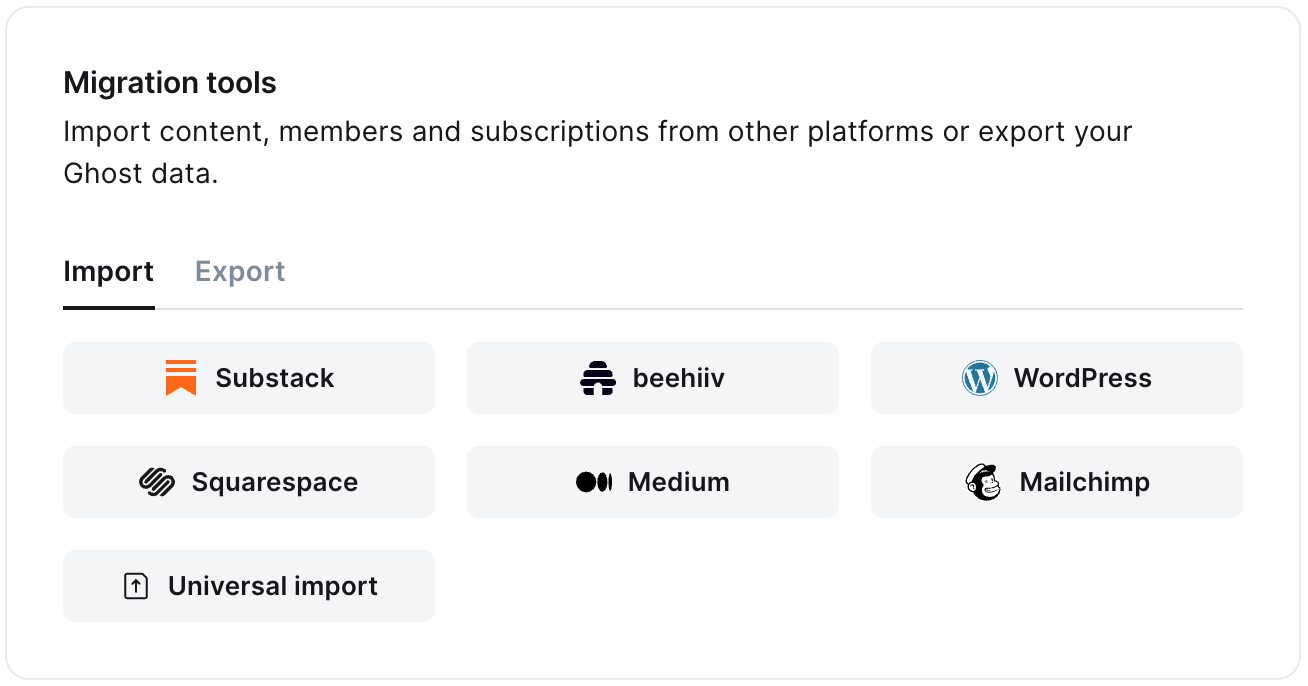 It's helpful to log in to your Squarespace site before running the migration in Ghost Admin.
### **1. Enter your Squarespace URL**
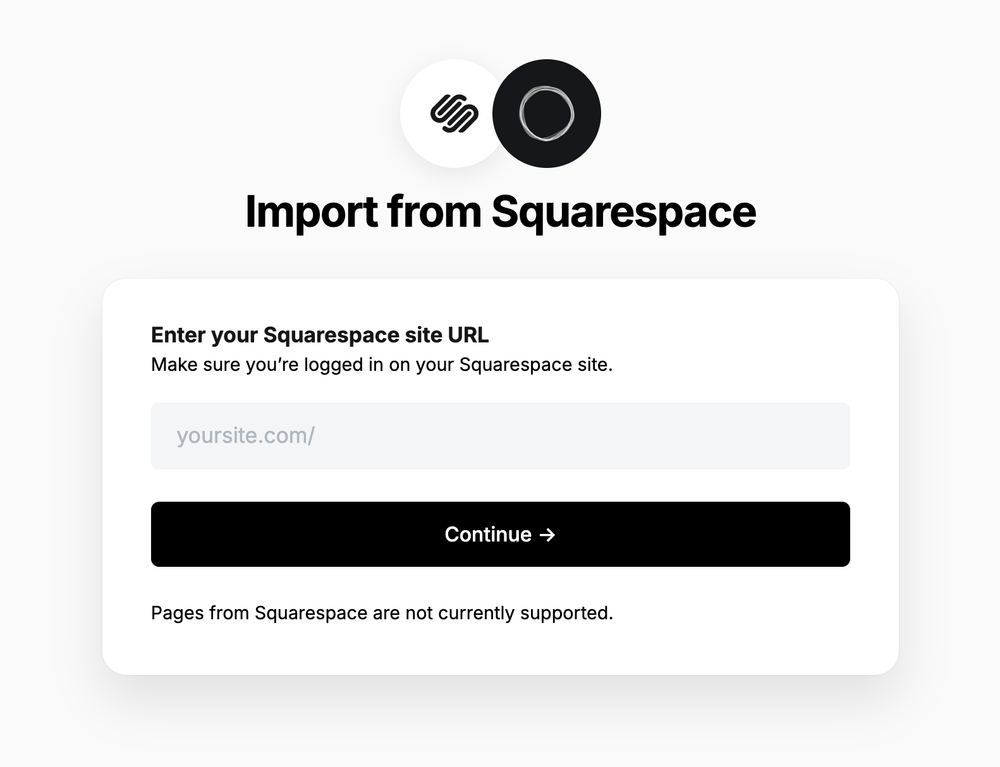
To start the migration process, enter the public URL to your Squarespace site, and click **Continue**.
It's helpful to log in to your Squarespace site before running the migration in Ghost Admin.
### **1. Enter your Squarespace URL**
To start the migration process, enter the public URL to your Squarespace site, and click **Continue**.
 ### **2. Export content**
Next, click **Open Squarespace settings.** If already logged into Squarespace, this will take you directly to the location of your Squarespace site where an export can be generated.
### **2. Export content**
Next, click **Open Squarespace settings.** If already logged into Squarespace, this will take you directly to the location of your Squarespace site where an export can be generated.
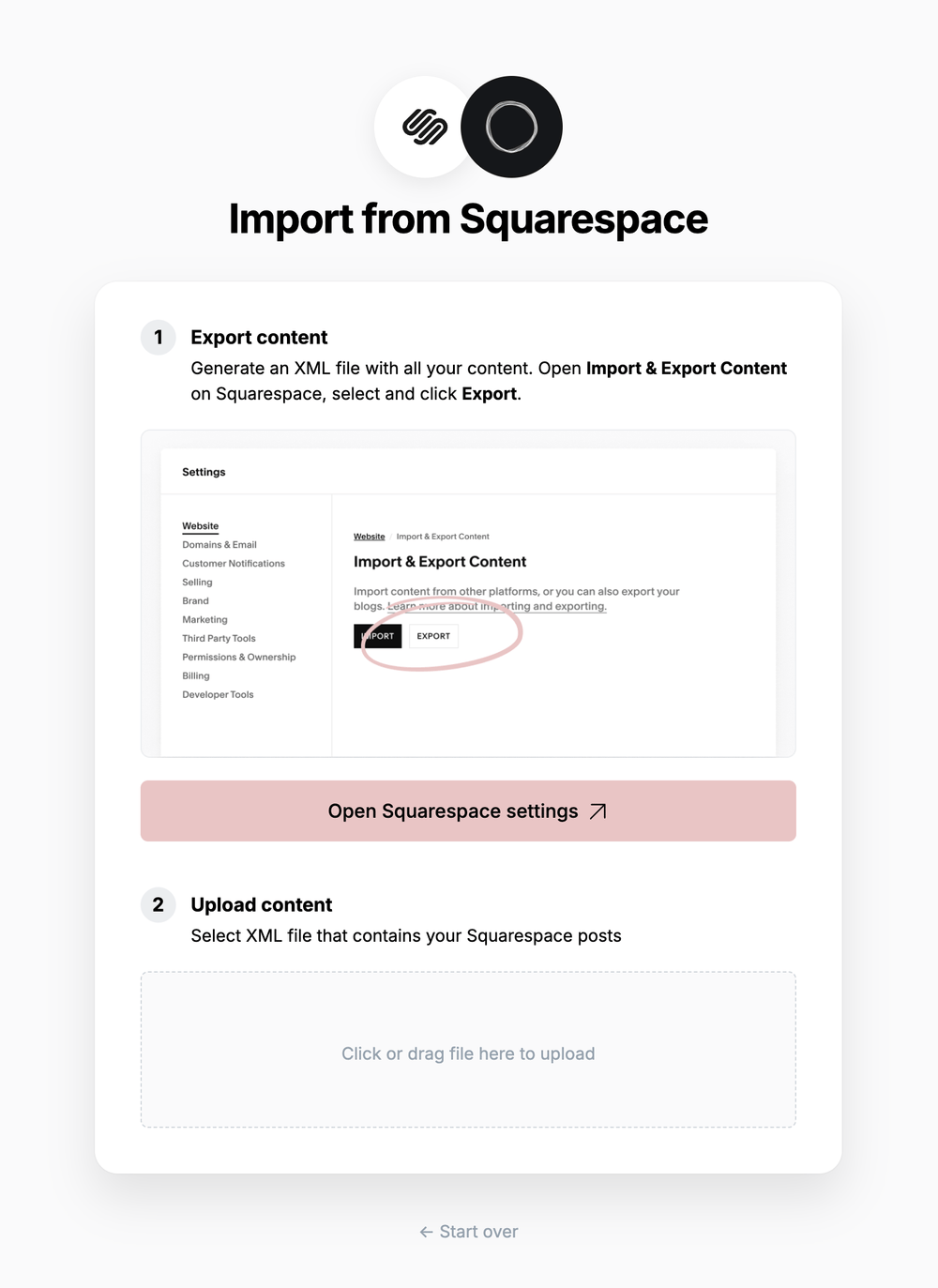 Click **Export**, which will download an XML file with your content in it.
### **3. Upload content**
Once your export has been downloaded, return to the migrator window in Ghost Admin, and select **Click or drag file here to upload**, and navigate to the XML file you downloaded from Squarespace, once uploaded click **Continue**.
If you're unsure of where the file was saved, check your Downloads folder.
### **4. Review**
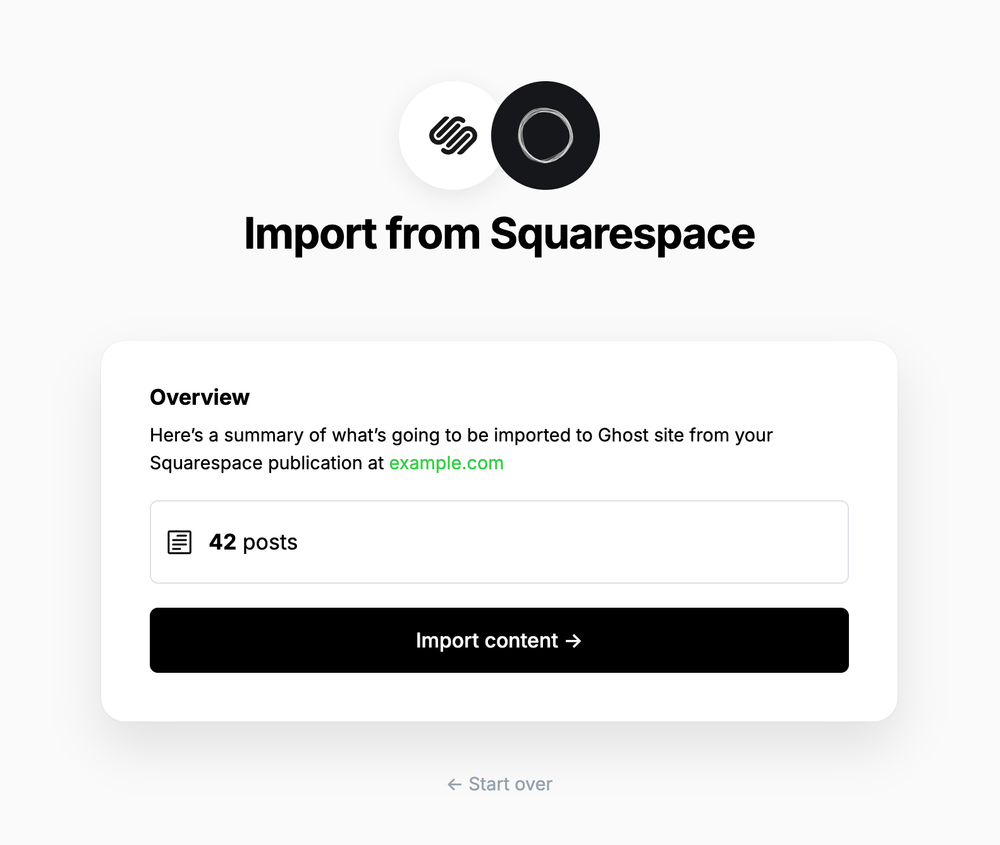
Ghost will confirm the number of posts and pages that will be imported to your publication. If satisfied, click **Import content** to begin the import of your data.
Click **Export**, which will download an XML file with your content in it.
### **3. Upload content**
Once your export has been downloaded, return to the migrator window in Ghost Admin, and select **Click or drag file here to upload**, and navigate to the XML file you downloaded from Squarespace, once uploaded click **Continue**.
If you're unsure of where the file was saved, check your Downloads folder.
### **4. Review**
Ghost will confirm the number of posts and pages that will be imported to your publication. If satisfied, click **Import content** to begin the import of your data.
 After a few moments, you'll see a confirmation message, confirming that your data was successfully migrated to your Ghost site.
***
### **Redirects**
Squarespace categories are converted to [tags](https://ghost.org/help/tags/) during the migration. The first category for any post will also become the [primary tag](https://ghost.org/help/tags/#primary-tags).
You may need to add [redirects](https://ghost.org/help/redirects/) to ensure backlinks lead to the correct content.
Please refer to this list of the [most common redirection rules for Squarespace migrations](https://ghost.org/tutorials/implementing-redirects/#squarespace).
***
## Large and Complex migrations
If your migration needs go beyond what our in-built migration tools can support you can still move to Ghost.
If you're a **Ghost(Pro) customer**, our Migrations team can support you in migrating your content and subscribers. Learn more and get in touch with the team [here](https://ghost.org/concierge/).
Alternatively, if you are a developer, comfortable with using the command line, or running a self-hosted Ghost instance, we have a suite of[ open-source migration tools ](https://github.com/TryGhost/migrate)to help with large, complex and custom migrations.
After a few moments, you'll see a confirmation message, confirming that your data was successfully migrated to your Ghost site.
***
### **Redirects**
Squarespace categories are converted to [tags](https://ghost.org/help/tags/) during the migration. The first category for any post will also become the [primary tag](https://ghost.org/help/tags/#primary-tags).
You may need to add [redirects](https://ghost.org/help/redirects/) to ensure backlinks lead to the correct content.
Please refer to this list of the [most common redirection rules for Squarespace migrations](https://ghost.org/tutorials/implementing-redirects/#squarespace).
***
## Large and Complex migrations
If your migration needs go beyond what our in-built migration tools can support you can still move to Ghost.
If you're a **Ghost(Pro) customer**, our Migrations team can support you in migrating your content and subscribers. Learn more and get in touch with the team [here](https://ghost.org/concierge/).
Alternatively, if you are a developer, comfortable with using the command line, or running a self-hosted Ghost instance, we have a suite of[ open-source migration tools ](https://github.com/TryGhost/migrate)to help with large, complex and custom migrations.